Testiny MCP Server
The Testiny MCP (Model Context Protocol) Server enables AI tools like Claude (Code, Desktop), VS Code with Copilot, and other MCP-compatible applications to interact directly with your Testiny project data. This allows AI assistants to create and read test cases, create test runs, update test results, and manage your testing workflow seamlessly.
Watch a short overview of the Testiny MCP Server setup and in action:
Why use Testiny with AI assistants?
The Testiny MCP Server lets AI assistants work directly with your test management data. Instead of manually searching for test cases, creating runs, or updating results, you can describe what you want in natural language and let your AI assistant perform the work.
Connect Testiny to Claude, ChatGPT, GitHub Copilot, Cursor, or any MCP-compatible client to:
- Create and organize test cases
- Search and analyze existing test repositories
- Generate new tests from requirements or user stories
- Create and manage test runs
- Execute tests and update results
- Track testing progress across projects
Setup
To use the Testiny MCP server, you'll need to configure it with your Testiny credentials and add it to your AI tool's MCP configuration.
Prerequisites
- A Testiny account with API access
- A Testiny paid or trial plan
- An optional API key from your Testiny API Keys settings
- If no API key is used, the Authorization header is not needed and OAuth will be used instead
- MCP Server URL:
For Testiny Server, please use your instance URL instead ofhttps://app.testiny.io/api/v1/mcp-server
app.testiny.io.
Configuration Examples
Here are examples of how to configure the MCP server with specific clients. You can use the MCP server with any MCP compatible client (protocol '2025-06-18').
- VS Code with Copilot
- Claude (Desktop)
- Claude (Code)
- ChatGPT
- Copilot Studio
Configure the Testiny MCP server in your VS Code settings mcp.json or workspace configuration:
{
  "servers": {
    "testiny": {
      "url": "https://app.testiny.io/api/v1/mcp-server",
      "type": "http",
      "headers": {
        "Authorization": "Bearer your-api-key-here"
      }
    }
  }
}
Testiny is listed in the Claude Connectors directory. A connector added there is available in Claude on the web, in Claude Desktop, in the mobile app, and in Claude Code. Sign in to Claude first — the directory listing is only shown to signed-in users.
- In Claude, open
Customize→Connectorsand selectDiscover. - Search for "Testiny" and open the Testiny connector.
- Select
Connect to Claude. - Sign in to Testiny in the browser window that opens and approve the requested access.
The Testiny connector is now listed under Your connectors with the status Connected. To use it in a chat, select + in the message box → Connectors and make sure the Testiny toggle is on.
On Claude Team and Enterprise plans, an organization Owner must first add the Testiny connector for the organization (Connect for your team). Members then connect with their own Testiny account. See Get started with connectors for details.
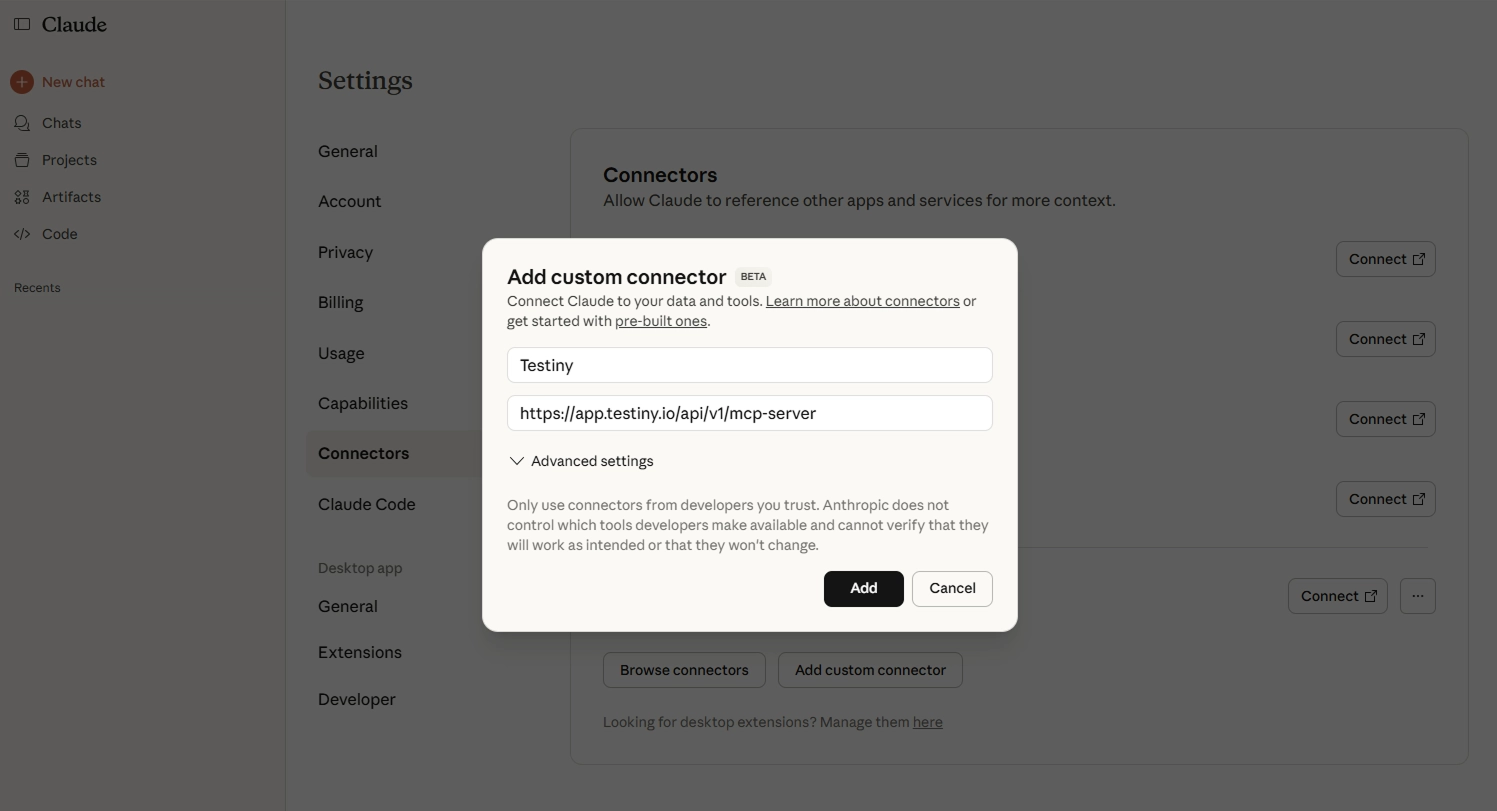
Testiny Server: The directory connector connects to app.testiny.io. For Testiny Server, add the Testiny MCP Server as a custom connector instead and connect via OAuth using your instance URL, e.g. https://testiny.example.com/api/v1/mcp-server:
If you are signed in to Claude Code with your Claude account, the Testiny connector from the Claude Connectors directory is available automatically — no extra configuration needed:
- Connect Testiny in Claude as described in the
Claude (Desktop)tab. - Start Claude Code and run
/mcp.
The Testiny connector is listed with a "claude.ai" label and its tools are available in your session. See Use MCP servers from claude.ai for details.
Connectors from claude.ai are not loaded when Claude Code uses an API key, Amazon Bedrock, or Google Cloud Vertex AI for authentication. In that case — or for Testiny Server — add the Testiny MCP Server manually as shown below.
Add the Testiny MCP Server manually
Add the Testiny MCP Server as a remote HTTP server using the claude mcp add command:
claude mcp add --transport http testiny https://app.testiny.io/api/v1/mcp-server
To authenticate, run the /mcp command inside Claude Code and select testiny to start the OAuth login flow in your browser. Once connected, the Testiny tools become available in your session.
Alternatively, you can authenticate with an API key by passing an Authorization header:
claude mcp add --transport http testiny https://app.testiny.io/api/v1/mcp-server --header "Authorization: Bearer your-api-key-here"
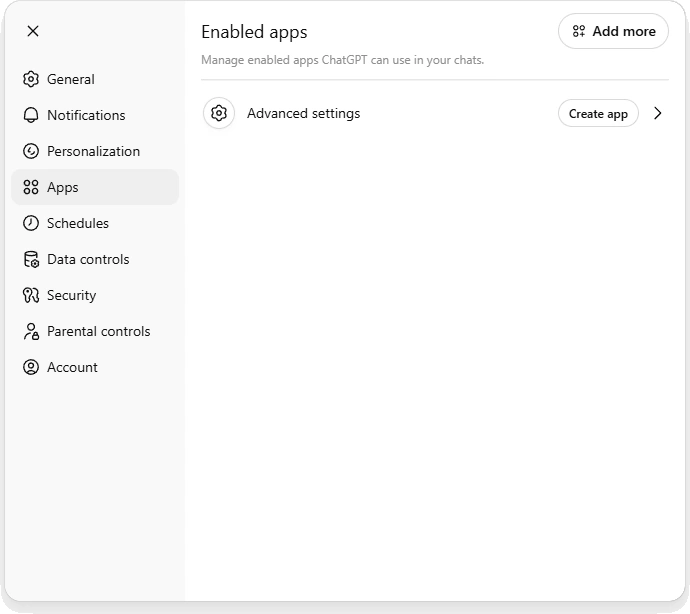
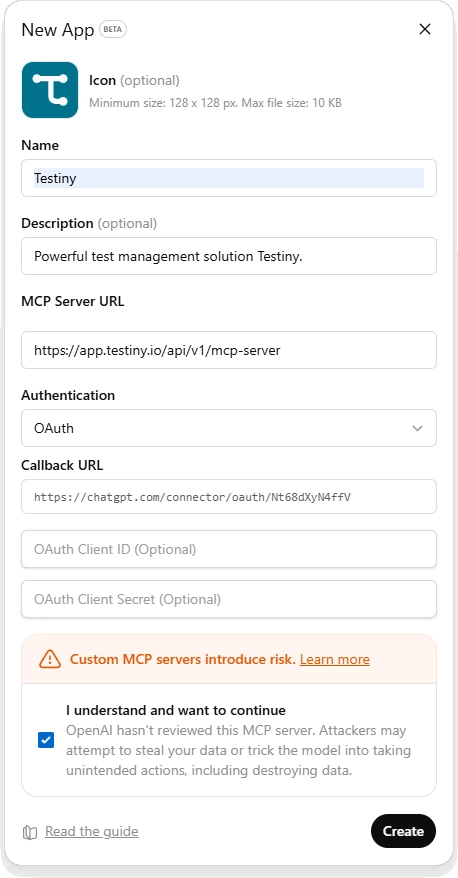
Open Settings and navigate to Apps. Add the Testiny MCP Server by creating an App and connect via OAuth using MCP Server URL https://app.testiny.io/api/v1/mcp-server:
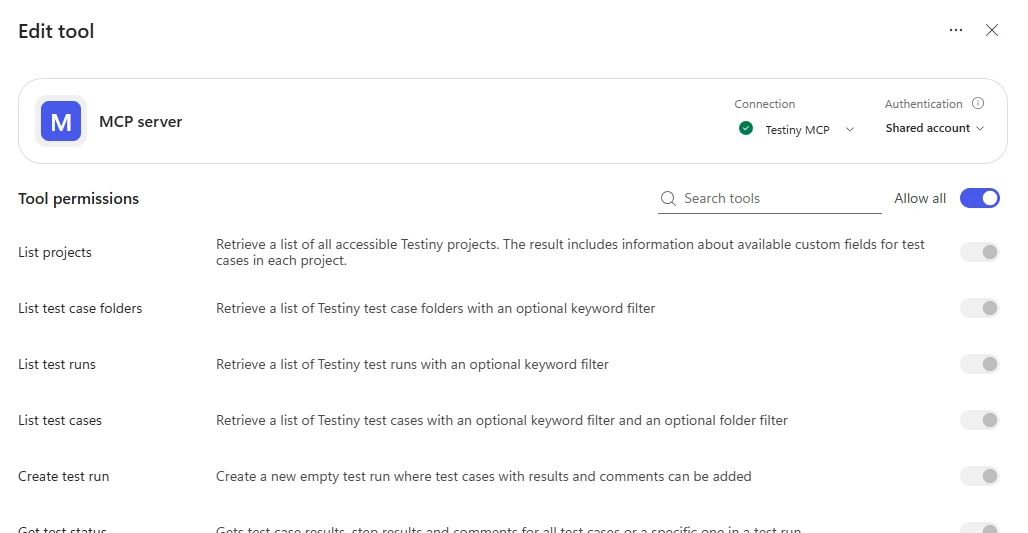
Add the Testiny MCP Server by creating a new tool and connect via API key using MCP Server URL https://app.testiny.io/api/v1/mcp-server, and then create a connection with the API key:
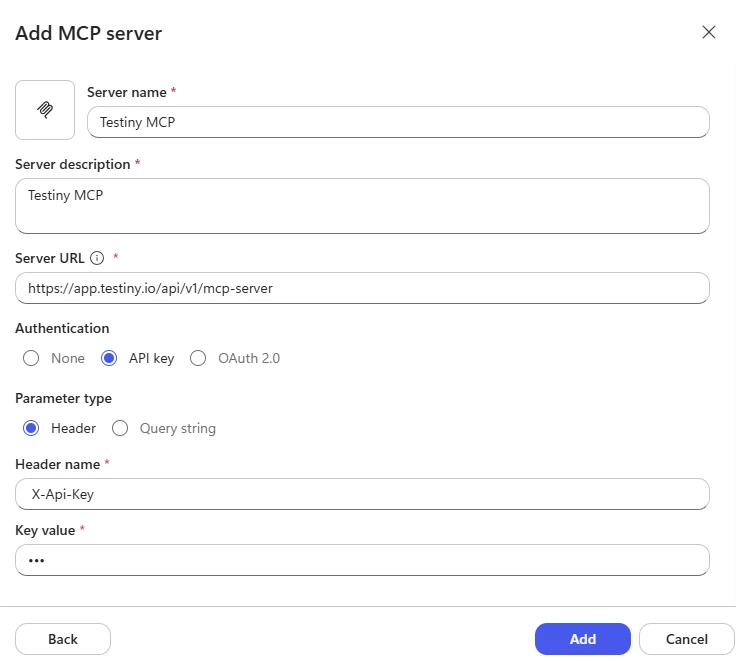
You'll see all available tools when editing the tool:
Treat your API key like a password and keep it secure. The API key inherits the same permissions as the user who created it. Consider creating dedicated API keys with limited project access for MCP server usage.
Available Tools
The Testiny MCP server provides the following tools for AI assistants to interact with your Testiny data:
Project Management
listProjects- Retrieve all accessible Testiny projectslistTestCaseFolders- Browse test case folder structure within projectslistTestCases- Get test cases with optional keyword filteringlistTestRuns- Get test runs with optional keyword filtering
Test Cases & Folders
createFolder- Create a folder with a title, and optionally a description and parent foldereditFolder- Edit the title or description of a foldermoveFolder- Move a folder into other folderscreateTestCase- Create test cases (in a folder) with a precondition, custom fields and content in the Steps, Text or BDD templateeditTestCase- Edit the title, precondition, template, content and custom fieldsmoveTestCases- Move test cases into (other) folders
Test Execution
createTestRun- Create a test run for organizing test executionsetTestResult- Update a test case result (passed, failed, blocked, skipped) in a test runsetTestResultBatch- Update test case results (passed, failed, blocked, skipped) in a test rungetTestStatus- Get the result, step results, comments and assignee of one or all test cases within a test runaddTestResultComment- Add a comment to a test result
Troubleshooting
If you encounter issues with the MCP server:
- Verify API Key: When using an API key, ensure your API key is valid and has appropriate permissions
- Ensure OAuth enabled: Ensure that OAuth is enabled in your Testiny organization settings. If your organization restricts the allowed redirect URLs, also enable the redirect URLs of desktop apps for clients such as Claude Desktop, Cursor or VS Code — see External App Access / OAuth2
- MCP feature available: Make sure you have a paid Testiny plan or are in the trial phase
- Check Base URL: Confirm the base URL matches your Testiny instance (Cloud vs Server)
- Project Access: Verify the API key's user has access to the projects you're trying to access
For additional support or feature requests, please contact our support team as explained here.
Use Cases
Test Cases as Context
Your test repository contains valuable knowledge about how your application works. Test cases often capture business rules, edge cases, validation requirements, and expected behavior that may not exist in specifications or documentation.
With the Testiny MCP Server, AI assistants can use this information as context when helping with development and testing tasks.
For example:
"Generate API tests for the new subscription feature based on our existing billing test cases."
An AI assistant can:
- Search related billing and subscription test cases
- Identify existing patterns and business rules
- Generate consistent new test cases
- Create them directly in Testiny
Faster Test Planning
When new requirements arrive, AI assistants can help identify what needs testing. You can also connect with other MCP servers (for example, Jira MCP or GitLab MCP) to leverage project information, requirements, issues and merge requests.
Example prompt:
"Review these requirements and suggest missing test cases based on our current regression suite."
The assistant can compare requirements against existing test coverage and propose additional test cases or exploratory testing ideas.
Streamlined Test Execution
AI assistants can also help manage execution activities.
Example prompt:
"Create a regression test run for Sprint 24 and mark all authentication tests as passed."
The assistant can locate the appropriate project, create the test run, and update results through the MCP tools.
Example Workflows
Generate Test Cases from Requirements
When new functionality is introduced, AI assistants can transform requirements into structured test cases and create the test cases directly in Testiny.
"Create test cases for password reset functionality in the Web Application project."
"Review the requirements TNY-123, TNY-124 and TNY-125 and create test cases in project Web Application."
Use specific prompts, e.g. define the Testiny project you're working in.
Analyze Test Coverage & Investigate Failed Tests
Understanding what is tested, what might be missing, and where failures occur is critical for maintaining quality. AI assistants can analyze your test repository and execution results to provide quick insights.
"Show me all test cases related to checkout and identify potential coverage gaps."
"Show me all failed tests from test run 'Release v1.25.0' from project 'Demo' and summarize the affected areas."
Augment a Release Test Run with Release Changes
Before executing a release test run, AI assistants can cross-reference the release's changes — release notes, merge requests, commits since the last release tag — against the test cases in the run.
Combined with a source-code MCP server (for example, GitLab MCP), the assistant adds a focused "what to verify" comment to each affected test case and highlights changes that are not covered by any test case in the run.
"Augment the test run 'Release v1.42.0' in project 'Web Application': check the code changes since the last release tag, add a comment to each affected test case with what to verify, and report changes that are not covered."
The AI assistant will:
- Find the project and test run using
listProjectsandlistTestRuns - Read the test cases in the run using
getTestStatusandlistTestCases - Retrieve and summarize the release changes through the connected source-code MCP server
- Add a verification-focus comment per affected test case using
addTestResultComment - Report changes that have no matching test case in the run
Recurring workflows like this are a great fit for reusable instruction files. See our example skill file and adapt it to your needs.
Assisted Test Automation Integration
You can ask your AI assistant to help automate test result reporting:
"Mark all smoke tests in today's regression run as passed and add a summary comment."
or
"Create a new test run called 'Sprint 24 Regression Tests' in the Mobile App project and execute the test case TC-123"
The AI assistant will:
- Find the Mobile App project using
listProjects - Create the test run using
createTestRun - Try to execute the steps in the specified test case
- Update the test result using
setTestResult - Add comments using
addTestResultComment
Always include enough context information for the assistant to be able to use e.g. a browser MCP server with URLs and test logins.
By combining Testiny's test management capabilities with AI assistants, teams can spend less time on repetitive administration and more time improving test quality.
Code Generation Example
Generate test automation code based on your Testiny test cases:
"Generate Selenium WebDriver test code for test case TC-456 in Java."
The AI assistant will:
- Retrieve the test case details using
listTestCases - Analyze the test steps and expected results
- Generate appropriate automation code
- Suggest how to integrate with your test reporting using
setTestResult
Include information about specific libraries, code style and existing test structure like page objects in your prompt.
Good to know
Test Case Templates
AI assistants can create and edit test cases in all three test case templates:
| Template | Content field | Content |
|---|---|---|
| Steps | steps | A list of steps, each with an action and an expected result |
| Text | text.stepsText, text.expectedResultText | Two free-form documents: one for the steps, one for the expected result |
| BDD | bddScenarios | Gherkin scenarios as plain text, as in a .feature file |
createTestCaseuses the template set intemplate. If no template is set, it uses the template that matches the content provided, or Steps if no content is provided.listTestCasesreturns the template of each test case and the content of that template under the same field names.
BDD scenarios are stored as sent: the MCP server does not validate the Gherkin. A Feature: line is optional, and a # language: directive sets the Gherkin dialect. Without one, the dialect is detected from the keywords.
Rich-Text Formats
Descriptions, preconditions, comments, step cells and Text template documents are rich-text fields. Every tool that reads or writes them accepts a format option:
markdown(default) — simple to read and write, but loses some formatting such as underline and text colorxml— keeps all the formatting, so an edit doesn't lose any of it
The MCP server provides a format reference for each format as an MCP resource (tny://format/markdown and tny://format/xml). AI assistants read these references before writing, and use xml to read and write a field that already has content.
Avoiding Conflicting Edits
Test cases and folders returned by listTestCases and listTestCaseFolders include a conflict tag (_etag). The create, edit and move tools also return the new tag.
If an AI assistant passes this tag to editTestCase or editFolder, the edit only goes through if nobody has changed the test case or folder since the assistant read it. If someone has, nothing is written, and the tool returns the status update_conflict and the current tag, so the assistant can read the item again first. Without a tag, the edit overwrites the stored content.
Related Documentation
- API Quickstart Guide - Learn about the underlying REST API
- API Keys Management - How to create and manage API keys
- Test Automation - Integrate with CI/CD pipelines
- CLI Tool - Alternative command-line interface for automation