Migrating from Azure DevOps Test Plans to Testiny
This guide shows how to migrate test cases from Azure DevOps Test Plans (Azure Test Plans) to Testiny. The in-app importer connects to the Azure DevOps API with a personal access token and migrates your test cases including steps, shared steps, parameters, text formatting, images, attachments, custom field values and linked requirements.
Prerequisites
- The URL of your Azure DevOps organization, e.g.
https://dev.azure.com/your-organization(the legacyhttps://your-organization.visualstudio.comURL works as well). For Azure DevOps Server, use the URL of your collection, e.g.https://your-server/DefaultCollection. - A personal access token with read access to the scopes
Test ManagementandWork Items. - Optional: an Azure DevOps integration in Testiny that points to the same Azure DevOps organization — required to migrate the requirements linked to your test cases.
Migrate via Azure DevOps API
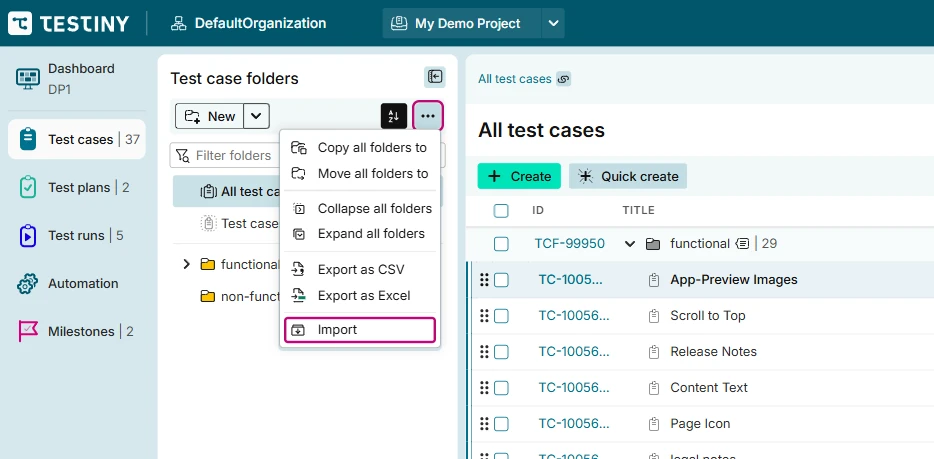
- Go to the test cases in your Testiny project and choose
Importfrom the menu as shown in the screenshot below.
- Select
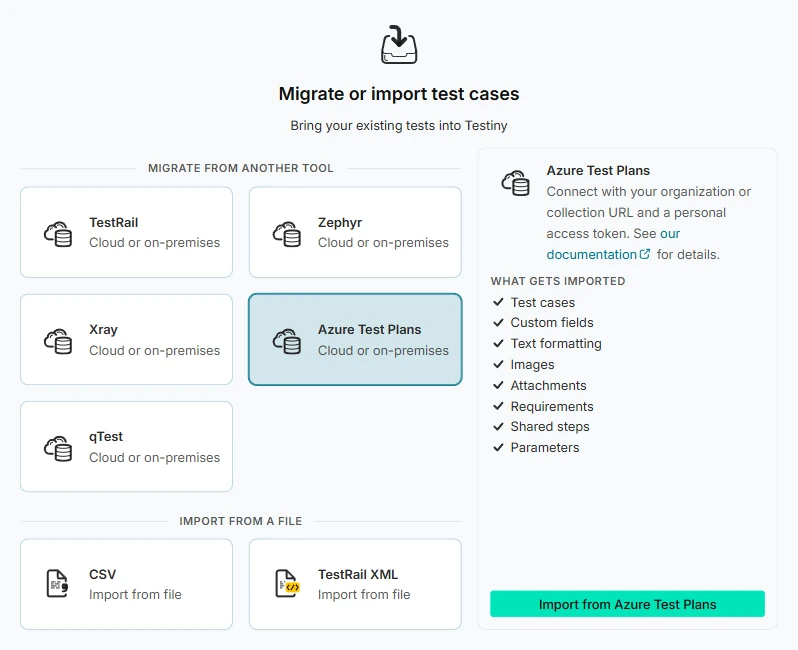
Azure Test Plansand clickImport from Azure Test Plans.
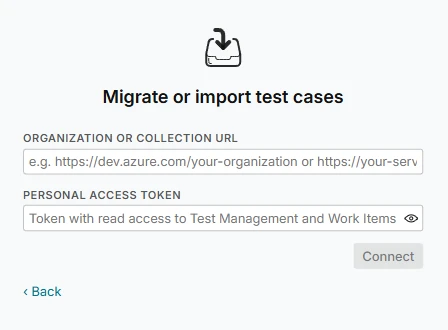
- Enter the organization or collection URL and your personal access token, then click
Connect.
Please note that an Azure DevOps Server instance must be reachable from the Internet so that Testiny can send API requests and migrate the data.
-
Choose what to import:
- Azure DevOps Project — the project that holds your test cases.
- Create folders from — how the imported test cases are organized into folders:
Test plans and suites— imports the test cases of the selected test plans; each test plan becomes a folder and its suites become subfolders.Area paths (all test cases of the project)— imports all test cases of the project, independent of test plans, and creates folders from their area paths.
- Test plans — the test plans to import (only for
Test plans and suites). A test case that is part of several suites is imported only once — into a static suite, if it belongs to one. - Optional - Import Azure DevOps Requirements (Tested By links) — select a Testiny Azure DevOps integration that points to the same Azure DevOps organization to link the requirements that the test cases are tested by.
- Limit number of fetched test cases — if you just want to try the migration, retrieve only a small number of test cases.
Then click
Continue. -
Testiny retrieves the test cases from Azure DevOps. Click
Map fields automaticallyto align the fields from your Azure DevOps test cases with the fields in Testiny. You can optionally map further fields — such asarea_path,iteration_pathor your Azure DevOps custom fields — to custom fields in Testiny. Once the mapping is confirmed, you get a preview of the test cases that will be imported. For further information about general importer settings, refer to the Importer Settings. -
Finally, if there are no errors and you're satisfied with the preview, click
Importto finalize the import and add the test cases to your project.
A summary dialog appears after the import, showing detailed statistics and any error messages. Copy the data to the clipboard (Copy all data to the clipboard) or dismiss the dialog by selecting eitherSave summary and close(this action downloads an HTML report of the import) or justClose.
What gets imported
| Azure DevOps | Testiny |
|---|---|
| Title | Test case title |
| Steps (action and expected result) | Steps and expected results |
| Description | Precondition |
| A first step starting with "Precondition:" that has no expected result | Appended to the precondition |
| Shared steps | Expanded into the steps of each test case; the first step names the shared steps, e.g. "➡️ Shared steps: Log in (#123)" |
| Parameters and shared parameters | A table with one column per parameter and one row per iteration — map the parameters field to a Testiny Multi-Line Text custom field to keep it |
| Priority 1–4 | Priority Critical, High, Medium, Low |
State Design, Ready, Closed | Status Draft, Ready, Obsolete |
Automation status Automated, Not Automated, Planned | Automation status Automated, Not automated, To be automated |
| Tags | Tags |
| Images and attachments, including attachments of individual steps | Inline images and attachments; step attachments are linked in their step |
| Requirements linked via "Tests / Tested By" | Linked requirements (with an Azure DevOps integration) |
| Custom fields, area path, iteration path, assigned to, automated test name/storage/type, Azure DevOps ID | Available for mapping to Testiny custom fields |
If shared steps cannot be found or the personal access token has no access to them, the affected test cases are imported with a placeholder step, e.g. "➡️ Shared steps #123 (not found)", and the import summary lists the missing shared steps.
Avoid hitting the API rate limit
Azure DevOps throttles requests of large migrations. Testiny waits and retries automatically when Azure DevOps asks it to slow down. If the migration still fails because of the rate limit, set API rate limit in the advanced importer settings to Medium or Low to send fewer requests per minute.
Next steps
- Organize your test cases in folders.
- Set up the Azure DevOps integration to create and link work items from Testiny.
- Create a test run for your migrated test cases.