Notifications
In the notifications settings, you can manage how Testiny tells your team about test activity. The page has two sections: My notifications for personal preferences, and Organization notifications for organization-wide notification channels that post into chat tools or your own HTTP endpoints.
Notifications are not available in the free plan. If you want to use them, please upgrade to the Starter plan or any higher tier — see our Pricing site.
Notifications can be sent for the following events:
- Test case assigned — a test case is assigned.
- Test run closed — a test run is closed.
- Test run commented — a comment is added to a test run.
See how to set up personal notifications, connect channels like Slack or Microsoft Teams, and use webhooks:
My notifications
Choose how you want to be notified about events that concern you. For each event, you can pick a notification frequency per delivery method:
- Email — notifications are sent to your account's email address.
- Browser — native browser notifications (your browser asks for permission the first time).
- App — most recent 100 notifications appear in the notification inbox inside Testiny, opened via the bell icon in the top bar.
Unread notifications are preserved for at least 14 days, read notifications for at least 24 hours after they have been read.
Notifications are sent in case they are relevant for your user:
- Test case assigned — a test case is assigned to you.
- Test run closed — a test run is closed.
- Test run commented — a comment is added to a test case that is assigned to you, or to one you have commented on before.
You only see the events your role allows in a project: Test run closed is available to every user who can read the project, Test case assigned requires permission to execute test runs, and Test run commented requires permission to comment. A user with read-only access, for example, can only subscribe to Test run closed.
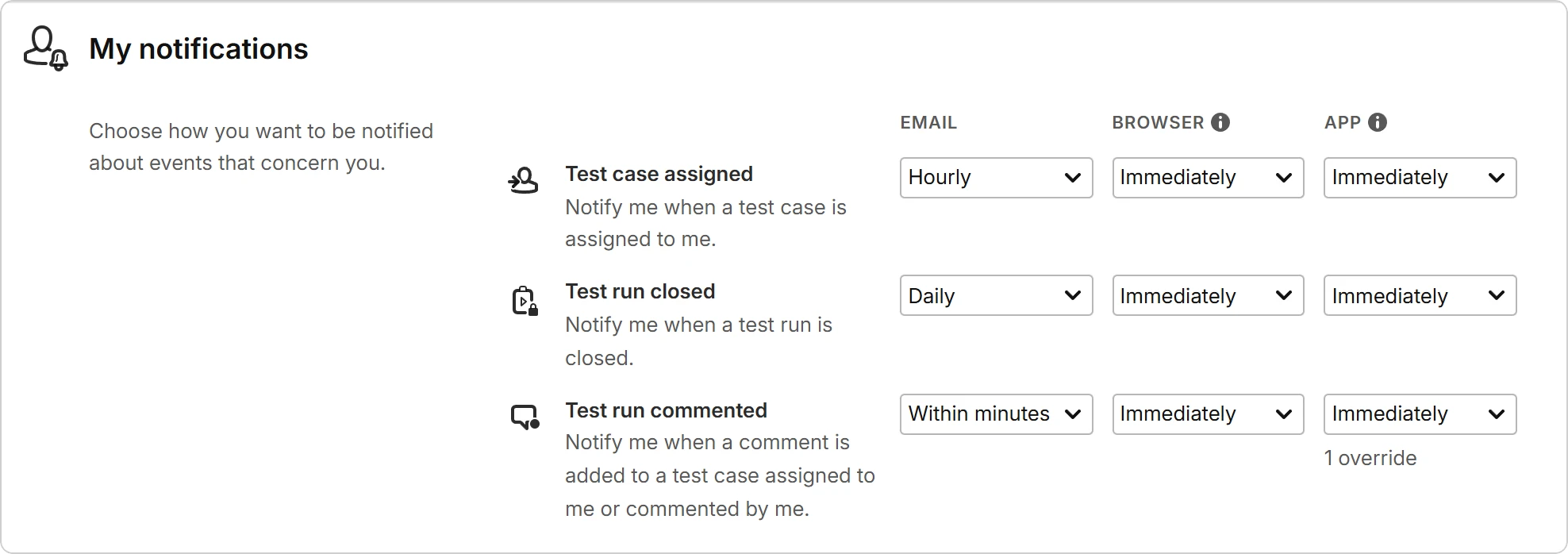
Click a dropdown to choose how often you want to be notified. What you pick under Organization-wide counts for all your projects. To receive more or fewer notifications about one particular project, select it under Project-specific and choose a frequency just for that project.

The following frequencies are available:
Never— no notifications for this event.Immediately— each event is sent out on its own, right away.Within minutes— similar events are combined and sent within a few minutes.Hourly— similar events are combined and sent out at the top of each hour.Daily— similar events are combined and sent out once a day. The frequency editor shows the exact delivery time in your time zone.
Notifications sent out directly in the app only support Never and Immediately. The combining frequencies (Within minutes, Hourly, Daily) are available for the email and browser methods.
Click Save at the bottom of the page to apply your changes.
Organization notifications
Configure organization-wide notification channels for Slack, Microsoft Teams, Discord, Google Chat, or any custom HTTP endpoint. Each channel delivers notifications to a webhook URL. Only users with the admin role can manage these.
The section shows two groups:
- Configured channels — channels that are already set up, with their type, name, and whether they are enabled. Open a channel to edit it, or remove it with the delete action.
- Available channels — channel types you can add.
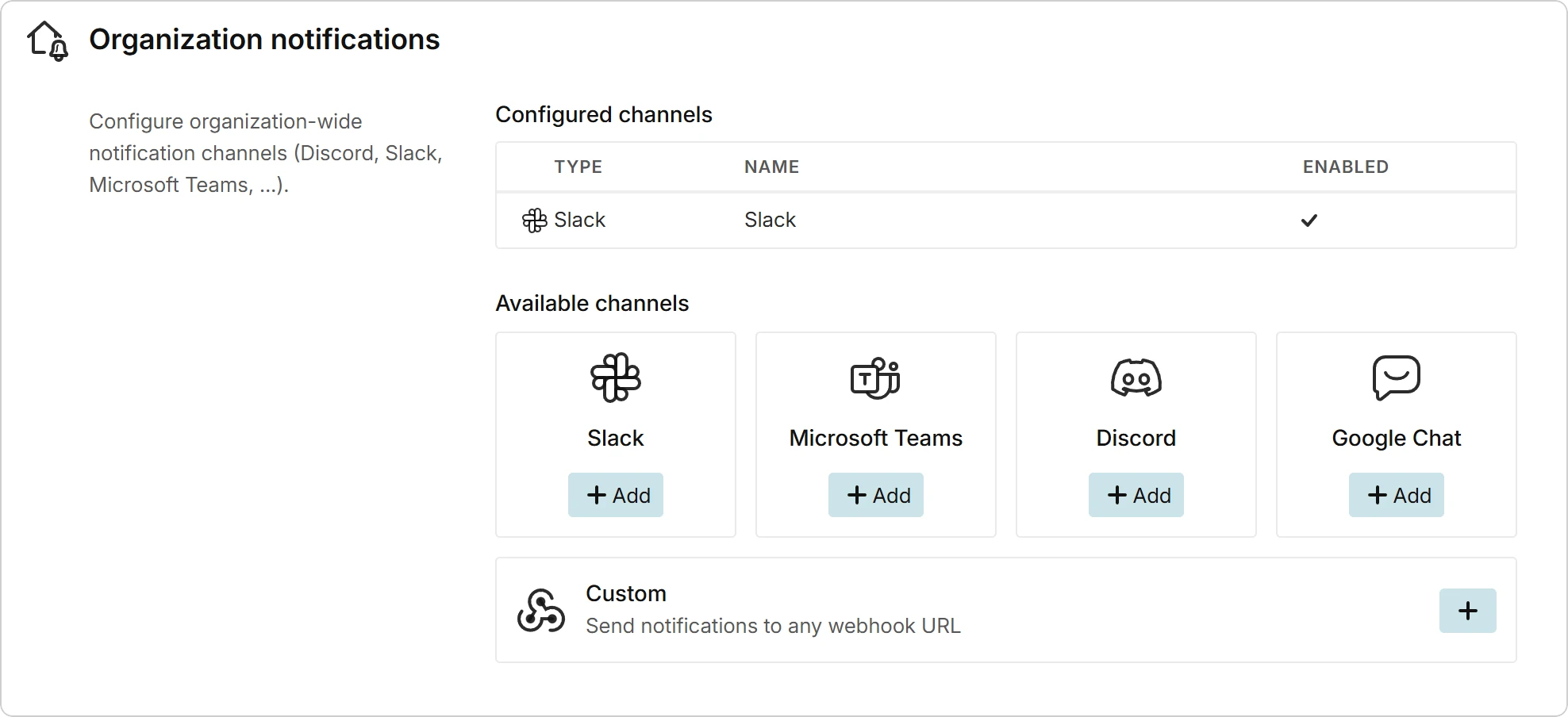
To add a channel, click Add on the channel type you want (or the + button of the Custom channel), then fill in:
- Name — a friendly label that helps you tell channels apart.
- Webhook URL — the URL you obtained from the chat tool, or your own endpoint for the custom channel. (See here where to get the Webhook URL.)
- Language — the language of the notification messages sent to this channel.
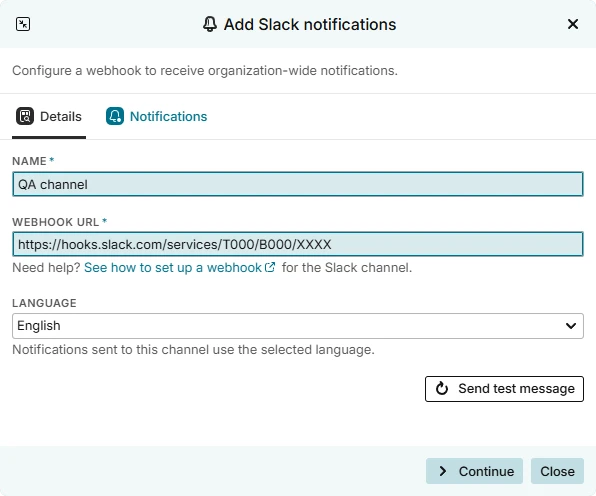
Click Send test message to send a sample notification to the URL. Testiny posts a test event and shows whether the endpoint accepted it.
Click Continue to switch to the Notifications tab, where you choose a frequency for each event — with the same organization-wide default and project-specific overrides as for your own notifications. Then click Save to create the channel.
After saving, open the channel from the Configured channels table at any time to change its details or notification frequencies. The Enabled checkbox on the Details tab lets you pause a channel without deleting it.
Webhook delivery
See how to obtain a webhook URL for a supported chat tool, or how to use the custom channel for your own endpoint:
These are third-party platforms, so their setup steps can change at any time without notice – if something doesn't match what you see, please let us know so we can update this guide.
Slack
- Open the Slack app creation page and click
Create New App→From scratch. - Enter an app name, pick the Slack workspace that should receive notifications, and click
Create App. - In the app's left sidebar, select
Incoming Webhooksand toggleActivate Incoming Webhookson. - Click
Add New Webhook to Workspace, choose the destination channel, then clickAllow. - Copy the URL listed under Webhook URLs for Your Workspace and paste it into Testiny's
Webhook URLfield.
For the latest official instructions, see Slack's Sending messages using incoming webhooks.
To post into a private Slack channel, you must already be a member of that channel before authorizing the webhook.
Microsoft Teams
- In Microsoft Teams, go to the channel where notifications should arrive, select
More options (⋯)next to the channel name, and chooseWorkflows. - Search for and select the template
Send webhook alerts to channel. - Confirm the Team and Channel, then click
Save. - Copy the URL (
Copy webhook link) from the confirmation dialog and paste it into Testiny'sWebhook URLfield.
For the latest official instructions, see Microsoft's Create incoming webhooks with Workflows for Microsoft Teams.
Discord
- In Discord, open
Server Settings→Integrations. - Open
Webhooks, then clickNew Webhook(orCreate Webhookif none exist yet). - Click the new webhook to expand it, choose the Channel it should post to, and optionally rename the webhook or set an avatar.
- Click
Copy Webhook URL, paste it into Testiny'sWebhook URLfield, and clickSave Changesin Discord.
For the latest official instructions, see Discord's Intro to Webhooks.
Google Chat
- Open Google Chat in a web browser and go to the space where notifications should arrive. Webhooks can only be added to a named space, and only from the browser — not from the mobile app.
- Click the space name at the top, then choose
Apps & integrations. - Click
Add webhooks. - Enter a Name - for example
Testiny- optionally add an Avatar URL, then clickSave. - Open the webhook's
Moremenu (⋮), chooseCopy link, and paste the URL into Testiny'sWebhook URLfield.
For the latest official instructions, see Google's Send messages to Google Chat with incoming webhooks.
Incoming webhooks require a Google Workspace account — personal Google accounts cannot create them. If Add webhooks is missing, your Google Workspace administrator has not allowed incoming webhooks for your organization.
The webhook URL contains a key and a token parameter, so treat it as a secret.
Custom
Use the Custom channel to deliver notifications to your own HTTP endpoint — for example, an automation platform like Zapier or n8n, an internal service, or a workflow engine. Instead of a chat-formatted message, Testiny sends a generic JSON event envelope that you can parse and route however you like.
The endpoint must:
- Be reachable over
https://on port443. - Accept
POSTrequests and answer with a2xxstatus code. - Answer directly — redirects are not followed.
Failed deliveries are retried and eventually disabled — see Retry policy.
Each event is sent as a JSON body with this shape:
{
  "event": "testiny.app_notification",
  "id": "ntf_<unique id>",
  "tenant": "<your tenant slug>",
  "timestamp": "<ISO 8601 UTC timestamp>",
  "data": {
    "type": "tc_assigned",
    "userId": 42,
    "originatorUserId": 7,
    "projId": 3,
    "projLabel": "DF",
    "projUrl": "https://app.testiny.io/DF",
    "runId": 123,
    "runLabel": "Smoke run",
    "runUrl": "https://app.testiny.io/DF/testruns/run/123",
    "tcIds": [12345],
    "tenant": "<your tenant slug>"
  }
}
The data.type field tells you which event was raised. Possible values:
tc_assigned— a test case was assigned (Test case assigned).tr_closed— a test run was closed (Test run closed).tr_comment— a comment was added to a test run (Test run commented).
Additional fields inside data vary by event type (for example, comment events include the commenter, closed-run events include who closed the run). Treat unknown fields as informational and key your integration on data.type.
Use Send test message to receive a sample tc_assigned event at your endpoint. The sample uses placeholder identifiers (project TestProject, run ExampleRun, test case 12345), which is handy for verifying your parser without waiting for a real notification.
Retry policy
A failed delivery is retried up to 5 times with an increasing delay, for a total of roughly 3 minutes. Each individual attempt times out after 15 seconds.
Only failures that might succeed on a retry are repeated:
| Response from your endpoint | Behaviour |
|---|---|
2xx | Delivered |
421, 429, 500–504 | Retried |
| Connection error or timeout | Retried |
Any other status, for example 403 or 404 | Dropped immediately, not retried |
Channels disabled after repeated errors
Testiny counts consecutive delivery failures per channel. A single successful delivery resets that count to zero, so occasional failures never accumulate.
If more than 10 consecutive deliveries fail, the channel is disabled automatically and stops sending notifications. Its Details tab then shows Channel is disabled, along with the number of delivery errors and the last error message Testiny received.
To bring a disabled channel back:
- Fix the cause on your side — for example a webhook URL that was rotated, or a chat channel that was deleted.
- Open the channel and click
Activate channel. Testiny marks it as enabled again and immediately sends a test message, so you can confirm the fix right away. - Click
Saveto apply the change.
Use Reset errors to clear the recorded error count and the last error message. This only clears the errors — it does not re-enable a disabled channel.