BDD Test Cases with Gherkin
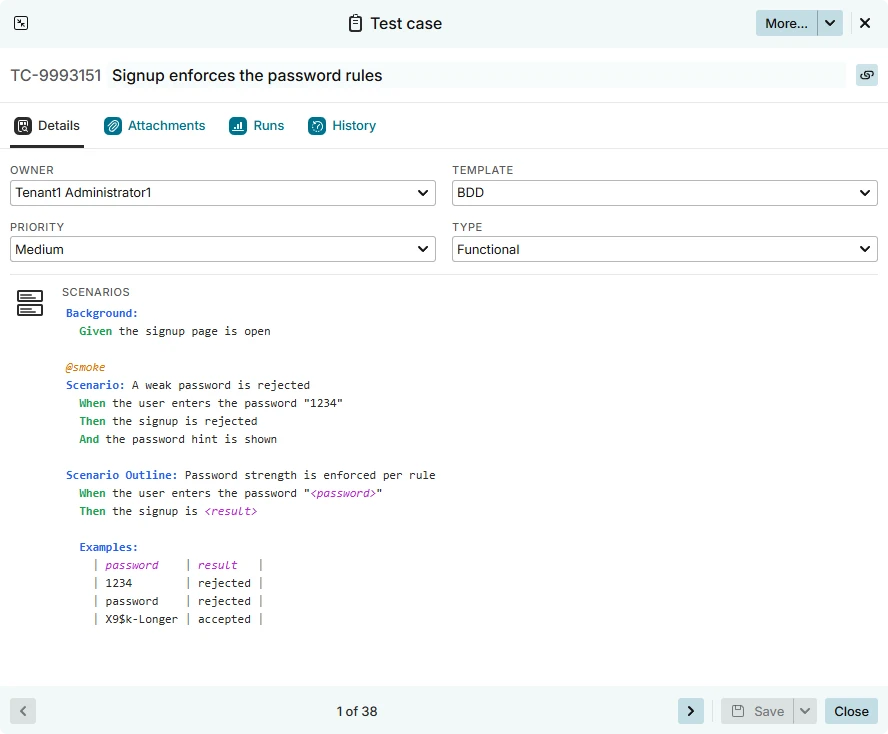
If your team describes behavior in Gherkin — the Given/When/Then language used by Cucumber, SpecFlow, Behave and Xray — you can write your test cases in Gherkin directly. The BDD template stores the scenarios as Gherkin: Testiny highlights the syntax, validates it while you type, understands 20 Gherkin dialects, and exports the test case as a .feature file.
Your behavior specification therefore lives in Testiny in its original form, whether the scenarios are executed by a person in a test run or by an automation framework in your pipeline.
 |
|---|
Watch a short walkthrough of writing and exporting BDD test cases in Testiny:
When to use the BDD template
Choose the BDD template when the test is already written — or is going to be written — as Gherkin scenarios. Compared to the other test case templates:
- BDD template — one
Scenariosfield holding plain Gherkin. Best for behavior specifications shared between testers, developers and product owners, and for keeping manual and automated BDD tests side by side. - Steps template — one expected result per step. Best for step-by-step procedures with a result per action.
- Text template — two free-text fields. Best for exploratory testing.
Creating a BDD test case
- In the test cases view, click
Create. - Enter a title. The title is the feature name — it becomes the
Feature:line when the test case is exported as a.featurefile, so name it after the behavior under test (for example "Signup enforces the password rules"). - Set
TemplatetoBDD. The steps and expected result fields are replaced by a singleScenariosfield. - Write your scenarios in the
Scenariosfield, then clickCreate.
A BDD test case has no separate precondition field. Use a Gherkin Background section within the Scenarios field instead — setup shared by all scenarios then stays part of the specification and is exported with it.
You also do not need to type a Feature: header — the test case title is the feature name. If you do type one (for example because you pasted a complete .feature file), Testiny keeps it and uses it on export instead of synthesizing one.
Writing Gherkin scenarios
You write the scenarios in Testiny's editor, which highlights the Gherkin syntax as you type. The content of the field stays plain Gherkin — exactly what would appear in a .feature file — so the editor's formatting features (bold, toolbar tables, images) do not apply here.
All constructs of the Gherkin reference are supported:
| Construct | Notes |
|---|---|
Feature: | Optional — the test case title is the feature name |
Background: | Shared setup; replaces the precondition field |
Rule: | Supported, groups related scenarios |
Scenario: / Example: | A single concrete example |
Scenario Outline: with Examples: | Runs the scenario once per data row |
Given / When / Then / And / But / * | Step keywords |
@tag | Tags on features, rules, scenarios and examples |
<placeholder> | Scenario outline placeholders, highlighted in the steps and in the Examples header |
Data tables (| … |) | Pipe-delimited tables below a step |
Doc strings (""") | Multi-line free text below a step |
# comments | Including the # language: directive |
For the exact semantics of each construct, see the official Gherkin reference.
Syntax highlighting and validation
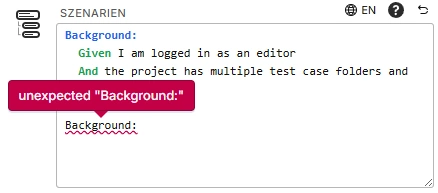
Testiny highlights keywords, step keywords, tags, comments, tables, doc strings and placeholders as you type, so a mistyped keyword is visible immediately.
The scenarios are also validated against the real Gherkin grammar. Lines that Gherkin cannot parse get a red squiggly underline — hover the underlined line to see what the parser objected to:
 |
|---|
While editing the Scenarios field, click the  icon above it to open How to write Gherkin scenarios — an editable playground containing one example of every Gherkin construct. Changes you make there are not saved, so it is safe to experiment.
Keyboard shortcuts
| Action | Shortcut |
|---|---|
| Increase indent of the selected lines | Tab |
| Decrease indent of the selected lines | Shift + Tab |
| Toggle on/off: Tab key moves focus, so that the next Tab moves on to the next field | Ctrl + M (Ctrl + Shift + M for macOS) |
Because Tab indents inside the Scenarios field, press "Toggle on/off: Tab key moves focus" (Ctrl + M, Ctrl + Shift + M on macOS) first, followed by Tab if you want to tab to the next field.
Gherkin dialects
Gherkin keywords are translated into many languages, and Testiny supports the dialects of all 20 languages available as Testiny UI language:
| Language | Code | Language | Code |
|---|---|---|---|
| Čeština | cs | Norsk | no |
| Dansk | da | Polski | pl |
| Deutsch | de | Português | pt |
| English | en | Русский | ru |
| Español | es | Svenska | sv |
| Suomi | fi | Türkçe | tr |
| Français | fr | Українська | uk |
| Italiano | it | 简体中文 | zh-CN |
| 日本語 | ja | 繁體中文 | zh-TW |
| 한국어 | ko | Nederlands | nl |
The active dialect controls which keywords are highlighted and accepted as valid, so a German scenario using Gegeben sei / Wenn / Dann is highlighted and validated just like an English one.
Choosing the dialect
Testiny detects the dialect automatically from the keywords you write and remembers it on the test case. To set it explicitly, start editing the Scenarios field and click the  globe button above it — it shows the active dialect code and lets you pick another one from the list.
Alternatively, start the scenarios with a # language: directive, which is the standard Gherkin way and is understood by every Cucumber-compatible tool:
# language: de
Szenario: Ein schwaches Passwort wird abgelehnt
  Wenn der Benutzer das Passwort "1234" eingibt
  Dann wird die Registrierung abgelehnt
A # language: directive always wins over the dialect stored on the test case. When one is present, the globe button reports the dialect it forces and is disabled — remove the directive to pick the dialect in the app again.
The Gherkin dialect is set per test case and is independent of your Testiny UI language. The help playground is available in English only.
Exporting a feature file
A BDD test case can be downloaded as a Gherkin .feature file, ready to drop into an automation project:
- Open the test case.
- Open the

More…menu in the test case header. - Choose
Export feature file.
 |
|---|
The file is named after the test case (for example TC-1234.feature) and contains:
- a
# language:directive if the test case uses a dialect other than English, - a
Feature:line built from the test case title — or your ownFeature:header if the scenarios already contain one, - the scenarios exactly as stored, with no reformatting.
The same file is available through the REST API at GET /api/v1/testcase/bdd-feature-file/{id}. Pass the optional lang query parameter to synthesize the header in a different dialect, for example ?lang=de. You can also export multiple files at once with the bulk-export route POST /api/v1/testcase/bdd-feature-files.
Executing a BDD test case
BDD test cases are added to test runs and executed like any other test case. In the runner view, the scenarios are shown read-only with full syntax highlighting, and the tester sets one result for the whole test case — Passed, Failed, Blocked, Skipped or any of your custom result states.
Comments, attachments and linked defects work exactly as they do for other templates. In a test run report, the scenarios are printed under a Scenarios heading with syntax highlighting.
Importing and exporting BDD test cases
Importing Gherkin scenarios
The test case importer can create BDD test cases directly. Map the column that holds your Gherkin source to the Testiny field Scenarios, and the imported test cases use the BDD template with the Gherkin taken over verbatim — no Markdown or HTML conversion is applied. The import preview shows the scenarios with syntax highlighting when you hover the content column.
When a row provides Gherkin scenarios, they take precedence over any steps and expected_result columns for that row, so a single file can mix BDD and step-based test cases.
Migrating from TestRail? BDD scenarios stored in TestRail's BDD scenario field are recognized automatically and imported as BDD test cases. This works for both the API and the XML import path — see the TestRail migration guide.
Testiny does not read .feature files directly yet. To bring one in, open the test case, select the BDD template and paste the file content into the Scenarios field — a typed Feature: header is tolerated and kept.
Exporting to Excel and CSV
BDD test cases are included in the regular Excel and CSV export. The export contains a template column identifying the template of each test case (testcase_template when exporting a test run), and the Gherkin scenarios are written as plain text into their own bdd_scenarios column (testcase_bdd_scenarios when exporting a test run) — the steps column stays empty for BDD test cases.
To get a file you can hand to an automation framework, use the feature file export instead.
Next steps
- Test case templates — compare all three templates
- Executing tests — run your BDD test cases
- Import & export test cases — bring existing scenarios into Testiny
- Automation — submit automated results to Testiny
- Gherkin reference and Gherkin dialects — the official Cucumber documentation