Reporting
In Testiny, you can create reports of individual test runs and export overviews in different file formats, such as PDF, Excel, or CSV, for sharing or archiving purposes.
PDF Report
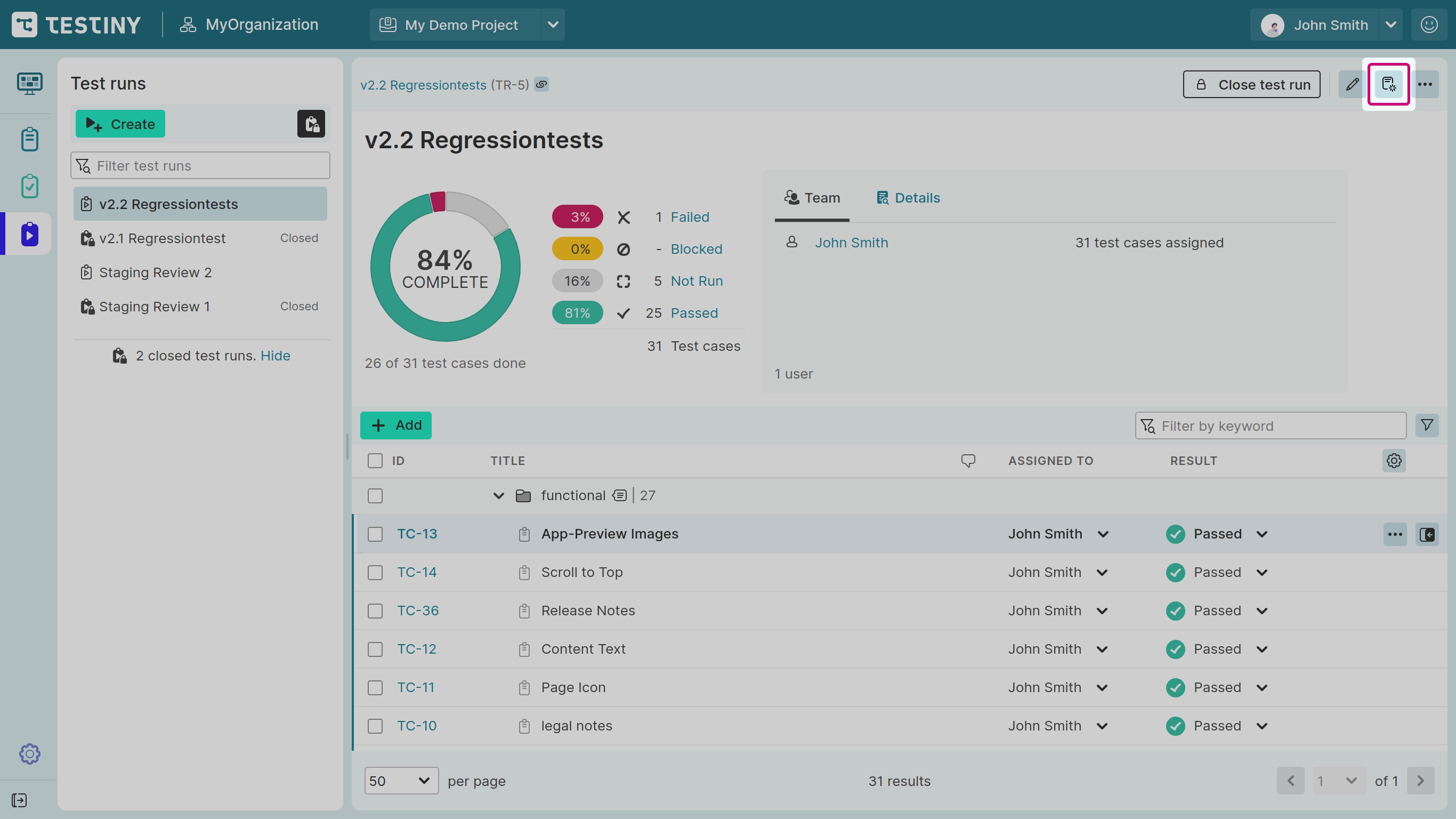
To create a PDF report of a test run, select the icon  in the top right corner of the test run, as shown in the screenshot below, or choose the menu item " Create report".
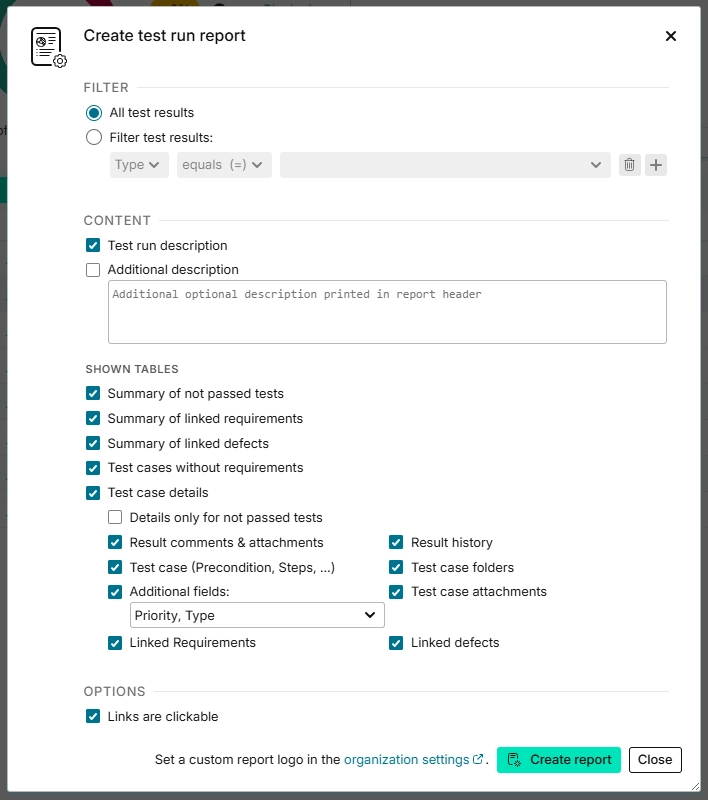
In the settings dialogs, you can configure the following options for your PDF report:
Filter
You can include "All test results" to create a full report including all test cases or add a filter to create a partial report.
Filter by test case properties such as priority, custom field values, test case folder, or result properties such as the user who executed the test case.
Content
Descriptions
Check to include the test run description in the report header.
You can also provide an optional description to be displayed in the report header.
Shown Tables
You can select which data tables should be included in the report.
- Summary of not passed tests:
Shows a list of all executed tests with a result other than passed.
The following three tables are only available if an integration is enabled for the project:
-
Summary of linked requirements:
Shows a list of linked requirements, the test cases they are linked to, and their test results.
Use this table to visualize test/requirements coverage for the test run. -
Summary of linked defects:
Shows a list of linked defects and the test results to which they are linked. -
Test cases without requirements:
Shows a list of test cases that have no linked requirements. -
Test case details:
Shows a list of all test cases.
You can configure the following options and select which details to include in the report:- Details only for not passed tests
Details can be shown for all results or only for tests that did not pass. - Result history:
Includes all modifications of test results in the report.
Note: Result history is not available in the free plan. - Result comments & attachments:
Includes comments, attachments, and images added to an execution in the report. - Test case (Precondition, Steps, …):
Includes test case contents in the report. - Additional fields:
Includes additional built-in and custom fields of test cases in the report. You can select which fields to include. - Test case attachments:
Shows the attachments added to a test case in the report. - Linked requirements:
If requirements are enabled and linked to the test case, they are included in the report. - Linked defects:
If defects are enabled and linked to the test execution, they are included in the report.
- Details only for not passed tests
Options
- Links are clickable:
If selected, all links (test case ID, attachments, linked requirements, and defects) are clickable in the report (useful if your goal is to create a PDF rather than a paper printout).
After clicking Create report, your browser's print dialog opens, allowing you to save the report as a .pdf file.
Excel or CSV Report
You can also export all results of a test run into an Excel or .csv file by using the menu options Export Excel and Export CSV. These files contain all data available in the test runs table and visible in Testiny.
For further information, see the section Exporting Test Runs.